

Why Hyva Is Worth It
Hyva replaces Magento’s default Luma frontend stack with a leaner setup built around Tailwind CSS and Alpine.js. That shift usually means better Core Web Vitals, simpler frontend maintenance, and a faster path to custom storefront work.
What changes with Hyva
Instead of working through RequireJS, KnockoutJS, and a heavier CSS pipeline, teams get a frontend that is easier to debug and much lighter in the browser. For many Magento stores, that is where the biggest performance gain shows up.
Where teams get stuck
The setup usually goes wrong in the same places: Composer authentication, skipping the child theme, forgetting Tailwind rebuilds, and leaving old Magento JS and CSS optimization settings enabled.
Before You Start
Check the environment before installing anything. A working setup depends on having the right Magento, PHP, Composer, Node.js, and npm versions, plus access to the Hyva license and private Composer repository.
Prerequisites
- Magento 2.4.4 or newer
- Supported PHP version
- Composer 2
- Node.js 20 or newer
- npm and SSH access
- Valid Hyva license and repository access
Quick environment checks
php -v

composer --version

node -v

npm -v

php bin/magento --version

php bin/magento deploy:mode:show
Set the correct deploy mode
php bin/magento deploy:mode:set developer

php bin/magento deploy:mode:set production
Use developer mode locally and production mode only for live deployment workflows.
Configure Composer Access
Hyva packages live in a private Composer repository, so this step has to work before installation can begin. You need the project name and the license authentication key from your Hyva account.
Add Hyva credentials
composer config --auth http-basic.hyva-themes.repo.packagist.com token YOUR_HYVA_LICENSE_KEY

composer config repositories.private-packagist composer https://hyva-themes.repo.packagist.com/YOUR_PROJECT_NAME/
Keep credentials out of the repository
Do not commit `auth.json` or hard-code the license key in project files. For CI and deployment pipelines, keep the credentials in environment secrets.
echo "auth.json" >> .gitignoreInstall and Enable Hyva
Once Composer access is working, install the default theme package and run the standard Magento setup commands. After that, assign the theme from Magento Admin.
See the official Hyva documentation for version-specific installation updates.
Install the package
composer require hyva-themes/magento2-default-theme

php bin/magento setup:upgrade

php bin/magento cache:flush
Production-only follow-up
php bin/magento setup:di:compile

php bin/magento setup:static-content:deploy -f

php bin/magento cache:flush
Enable the theme in Admin
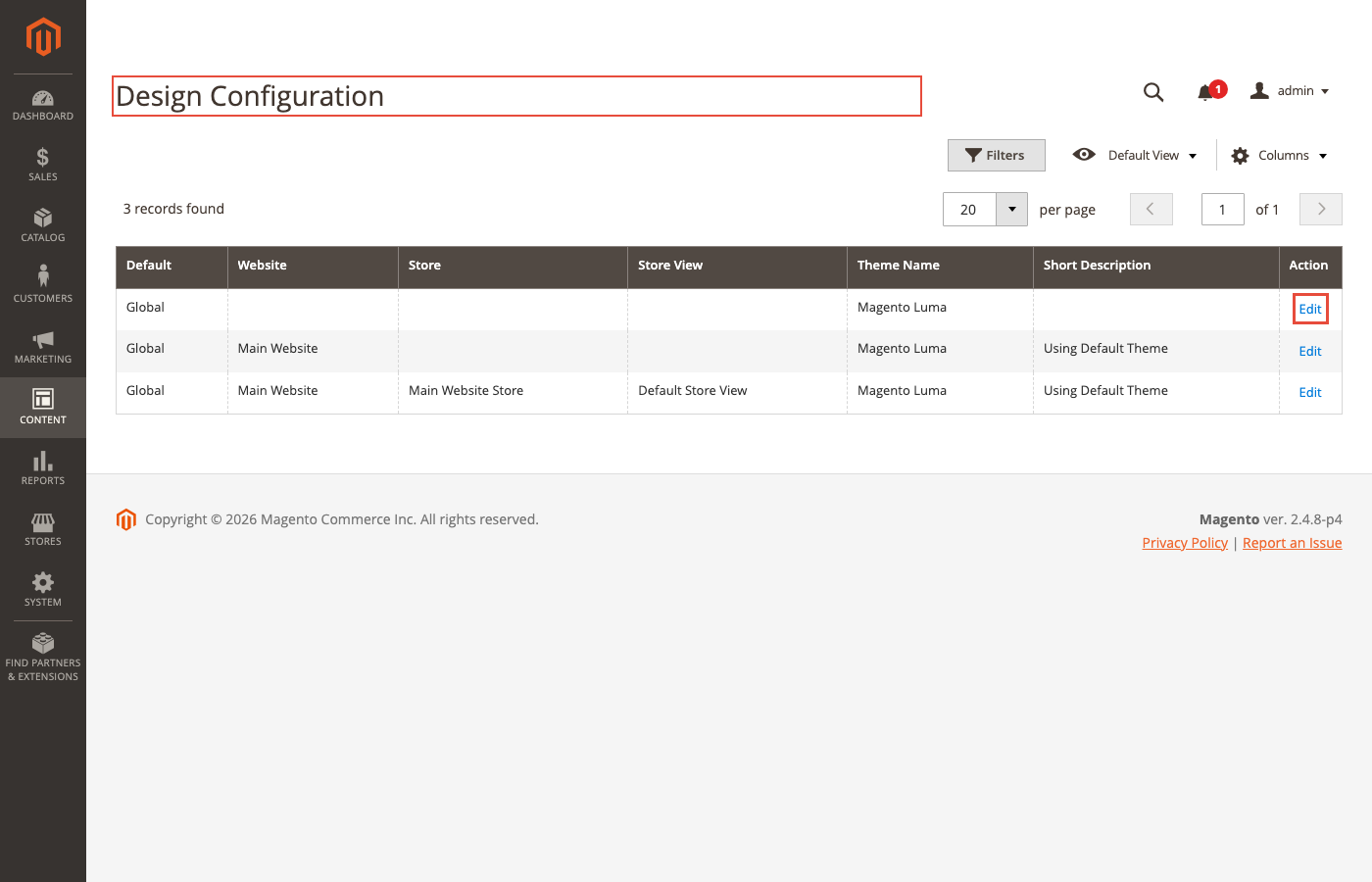
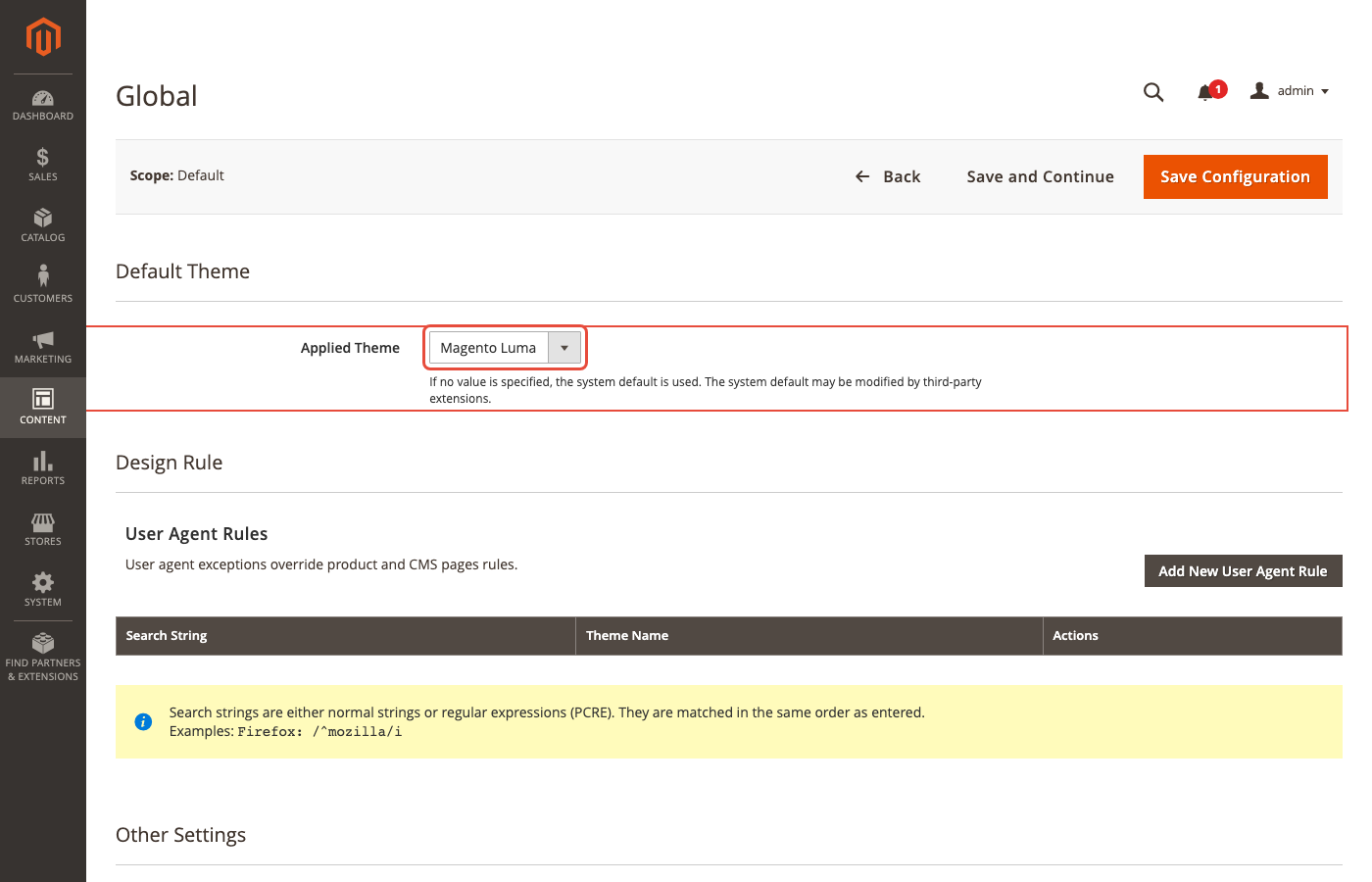
Go to Content, then Design, then Configuration. Edit the target store view, select Hyva/default, save, and flush the cache. This activates the base theme, but your real custom work should still happen in a child theme.
Create a Child Theme
This is the step teams skip most often, and it is the one that protects your custom work from future Composer updates. Never edit files inside the vendor package directly.
Create the theme files
mkdir -p app/design/frontend/YourVendor/hyva_childCreate `theme.xml` with `Hyva/default` as the parent, then add `registration.php` so Magento can register the child theme.
Minimum child theme structure
app/design/frontend/YourVendor/hyva_child

├── Magento_Catalog/

├── Magento_Theme/

├── media/

├── web/

├── registration.php

└── theme.xml
Register and select the child theme
php bin/magento setup:upgrade

php bin/magento cache:flush
Then return to Design Configuration and choose the child theme instead of Hyva/default.
Set Up Tailwind and Alpine.js
Hyva uses Tailwind CSS for styling and Alpine.js for frontend interactivity. Both are straightforward once the child theme is in place, but small mistakes here can cause missing styles or broken UI behavior.
Copy and build Tailwind
mkdir -p app/design/frontend/YourVendor/hyva_child/web/tailwind

cp -r vendor/hyva-themes/magento2-default-theme/web/tailwind/* app/design/frontend/YourVendor/hyva_child/web/tailwind/

cd app/design/frontend/YourVendor/hyva_child/web/tailwind

npm install

npm run build-dev

npm run build-prod
If your version uses different script names, check `package.json` before relying on defaults.
Avoid dynamic Tailwind class names
Tailwind scans templates at build time. If class names are assembled dynamically, the generated CSS may not include them. Use a static class map in PHP instead of building utility names on the fly.
Use Alpine.js for interaction
<div x-data="{ open: false }" class="border border-gray-200">

  <button type="button" @click="open = !open">Toggle</button>

  <div x-show="open">Content</div>

</div>
If Alpine is not responding, check the browser console first. Most issues come from syntax problems, invalid markup, or third-party script conflicts rather than a missing Alpine installation.
Disable old Magento frontend optimizations
php bin/magento config:set dev/template/minify_html 0

php bin/magento config:set dev/js/merge_files 0

php bin/magento config:set dev/js/enable_js_bundling 0

php bin/magento config:set dev/js/minify_files 0

php bin/magento config:set dev/js/move_script_to_bottom 0

php bin/magento config:set dev/css/merge_css_files 0

php bin/magento config:set dev/css/minify_files 0

php bin/magento cache:flush
Common Setup Errors
Most Hyva setup issues are predictable. Fixing them is usually a matter of checking authentication, theme registration, or the build pipeline in the right order.
| Problem | Likely Cause | What to Do |
|---|---|---|
| Composer cannot find the Hyva package | Repository credentials are missing or incorrect | Recheck the license key, project name, clear Composer cache, and retry the package install |
| Theme does not appear in Admin | `theme.xml` or `registration.php` is missing or not registered | Confirm both files exist, then run `setup:upgrade` and flush cache |
| Tailwind classes are missing on pages | CSS was not rebuilt or static assets were not refreshed | Run the production Tailwind build, clear generated frontend assets, and redeploy static content |
| Static content deployment fails | Old generated assets or stale compiled code | Clean generated directories, recompile, redeploy static content, and flush cache |
Production Deployment Checklist
A reliable go-live flow keeps Hyva deployments predictable. Build the child theme assets, run Magento compilation steps, and verify the key storefront paths before the site is marked live.
Recommended deployment flow
composer install --no-dev --prefer-dist --optimize-autoloader

php bin/magento maintenance:enable

php bin/magento setup:upgrade --keep-generated

php bin/magento setup:di:compile

cd app/design/frontend/YourVendor/hyva_child/web/tailwind

npm ci

npm run build-prod

cd -

php bin/magento setup:static-content:deploy -f

php bin/magento cache:flush

php bin/magento maintenance:disable
Final checks before launch
- Homepage, category, product, cart, and checkout pages
- Customer login, registration, and search
- Mobile menu and responsive layout behavior
- Third-party extension output
- Browser console, `system.log`, and `exception.log`
Final Takeaways
A Hyva setup becomes much easier once you follow the sequence consistently: verify the environment, configure Composer access, install the base package, build a child theme, set up Tailwind correctly, and clean up Magento’s legacy frontend settings.
What matters most long term
The child theme is the real foundation for maintainability. It keeps custom work safe during updates and makes template overrides much easier to manage over time.
One practical caveat
Hyva is not automatically compatible with every Magento extension. Stores with many frontend-heavy extensions should run a compatibility review before committing to a migration.
FAQ
How do I install the Hyva theme on Magento 2?
First configure access to the private Hyva Composer repository, then run `composer require hyva-themes/magento2-default-theme`, followed by `setup:upgrade` and `cache:flush`. Create a child theme before making custom changes.
Do I need a paid Hyva license?
Yes. Hyva is a commercial theme, and the license is what gives you access to the private Composer repository needed for installation and updates.
Why should I use a Hyva child theme instead of the default theme?
A child theme keeps your template overrides, layout changes, and Tailwind customizations separate from the vendor package, so updates do not overwrite your work.
Why are Tailwind classes missing after I update a template?
Usually because the Tailwind build was not rerun or because the classes were generated dynamically. Rebuild the Tailwind assets, clear static frontend files, and avoid dynamic utility class names.
Need Help With a Hyva Build?
If your Magento storefront needs Hyva setup, child theme work, or compatibility support, a specialist review can save a lot of rework before launch.
Responses
-
hhh
-
4e
-

Planning your next product, platform, or growth move?
Ethnic Infotech helps teams shape scalable software, sharper customer experiences, and content systems that support real business growth.
Leave a Reply