
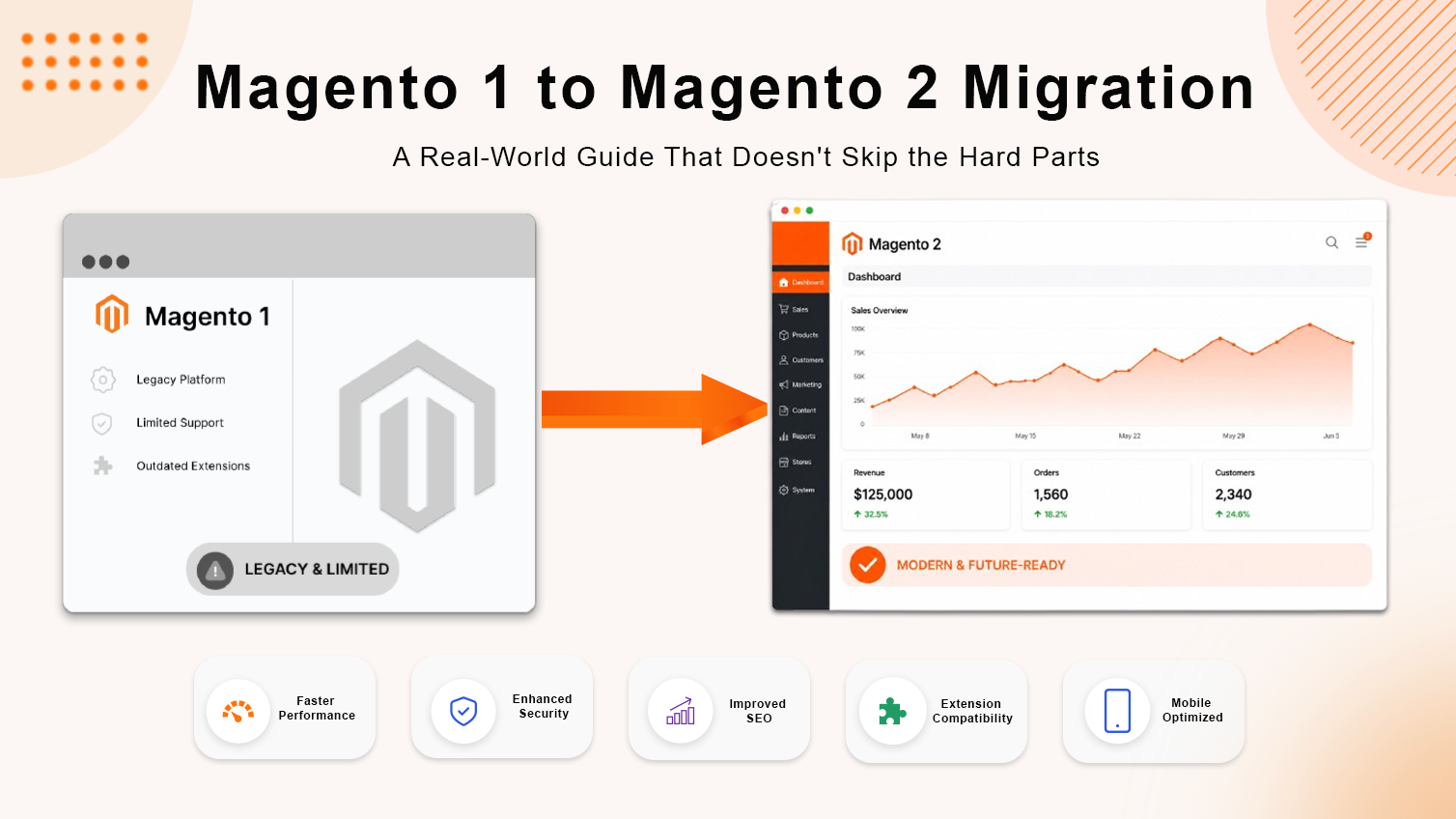
Why This Migration Actually Matters
Magento 1 hit end-of-life in June 2020. That’s not a soft sunset — it means no more security patches, full stop. Any store still running M1 is operating on a platform with publicly documented vulnerabilities and no official fixes coming.
But security isn’t the only reason to move. Magento 2 is genuinely better where it counts:
- Performance — Magento 2 introduced full-page caching, better asset bundling, and Varnish support out of the box. Page load times can drop significantly for stores that implement it properly.
- Elasticsearch — Native search integration replaces the clunky M1 search. For stores with large catalogs, this alone is worth the migration.
- Modern PHP compatibility — Magento 2.4.x requires PHP 8.x. M1 was stuck on older PHP versions that many hosts are phasing out.
- API-first architecture — REST and GraphQL APIs make it far easier to connect headless frontends, mobile apps, or third-party integrations.
- Checkout experience — The two-step checkout in M2 converts better than M1’s multi-step flow. Not a dramatic claim — it’s consistent across reported case studies.
According to Statista, Magento/Adobe Commerce holds around 6–7% of the global e-commerce platform market — and that share is almost entirely Magento 2. M1 stores are getting left behind by extensions, integrations, and the platform ecosystem itself.
This guide covers: Magento Open Source 1.9.2.4 → Magento Open Source 2.4.8, using the Data Migration Tool version 2.4.8.1.
What You Need Before You Start
Don’t skip this. Half the migration failures I’ve seen came from someone jumping straight to Step 1 without checking these first.
Magento 2.4.8 must already be installed and working. That means:
- Admin panel accessible ✓
- Database connection working ✓
- Elasticsearch configured and running ✓
- Cron jobs set up ✓
- Indexers functional ✓
If your M2 install has issues before migration, those issues don’t disappear — they get buried under migrated data and become much harder to debug.
Take backups. All of them.
mysqldump -u root -p magento1 > magento1_backup.sqlDo the same for your Magento 2 database. Back up the media folder. Back up the codebase. Yes, all of it. You’ll want these if something goes wrong halfway through.
Disable third-party extensions in Magento 1. This is where most people get tripped up. Custom extension tables, non-standard data structures, leftover module data — all of it can interrupt the migration process. Before running anything, disable extensions you don’t need and clean up any obviously invalid data they may have left behind.
Step 1: Export the Magento 1 Database
Export the M1 database and place it in the same environment as your Magento 2 database. The migration tool needs to reach both simultaneously.
By the end of this step you should have two databases accessible from your Magento 2 environment:
| Project | Database |
|---|---|
| Magento 1 | m1v2 |
| Magento 2 | magento |
The Magento 2 database should already be connected to your M2 project. The M1 database is just sitting alongside it for the migration tool to read from.
Step 2: Install the Magento Data Migration Tool
Here’s something that catches people out: the migration tool version must match your Magento 2 version exactly.
Since Magento 2.4.8 includes additional patches, the compatible migration tool version is 2.4.8.1 — not 2.4.8.
Run:
composer require magento/data-migration-tool:2.4.8.1 -WThe -W flag (–with-all-dependencies) updates related Composer dependencies during installation. Without it, you may get dependency conflicts.
After installation, run the standard deployment commands:
php bin/magento setup:upgrade php bin/magento setup:di:compile php bin/magento setup:static-content:deploy -f php bin/magento cache:flushDon’t skip these. The migration tool adds new code that needs to be compiled and deployed before it’s usable.
Step 3: Apply the Required Patches
Before running any migration commands, apply two known patches that prevent common migration failures:
- Magento Data Migration Tool Issue #899
- Magento Data Migration Tool Issue #931
These aren’t optional. Without them, the migration will likely fail at specific data steps — and the error messages aren’t always obvious about why.
Apply the patch files before moving forward. The patches are available in the official Magento Data Migration Tool GitHub repository under their respective issue threads.
Step 4: Create a Custom Migration Module
Create a custom module at:
app/code/Magento/MigrationGenerate the standard Magento module files:
- registration.php
- etc/module.xml
- composer.json
Why a custom module instead of modifying the vendor directory directly? Because anything you put in vendor/ gets overwritten on the next composer update. Your migration config needs to live somewhere that survives updates. The custom module is that place — it also makes your migration config version-controllable, which matters if you’re running this on staging before production.
Step 5: Copy the Migration Configuration File
Navigate to the migration tool’s etc directory:
vendor/magento/data-migration-tool/etc/opensource-to-opensource/Since this is an Open Source to Open Source migration, that’s the right folder. Select the Magento 1 version subfolder — in this case, 1.9.2.4.
You’ll find the default config file here:
vendor/magento/data-migration-tool/etc/opensource-to-opensource/1.9.2.4/config.xml.distCopy it into your custom module and rename it:
app/code/Magento/Migration/etc/opensource-to-opensource/1.9.2.4/config.xmlDon’t edit the original in the vendor directory. Always work from the copy in your custom module.
Step 6: Update Database Credentials
Open your copied config.xml and update the source and destination database credentials.
Default (what you’ll find in the file):
<source>
<database host=”localhost” name=”magento1″ user=”root” />
</source>
<destination>
<database host=”localhost” name=”magento2″
user=”root” />
</destination>
Updated to match your environment (adjust to your actual credentials):
<source>
<database host=”db” name=”m1v2″
user=”magento” password=”magento”/>
</source>
<destination>
<database host=”db” name=”magento”
user=”magento” password=”magento”/>
</destination>
Where:
- source = your Magento 1 database
- destination = your Magento 2 database
After saving the config, run the deployment commands again:
php bin/magento setup:upgrade
php bin/magento setup:di:compile
php bin/magento setup:static-content:deploy -f
php bin/magento cache:flushStep 7: Migrate Magento Settings
Run the settings migration first:
php bin/magento migrate:settings -r app/code/Magento/Migration/etc/opensource-to-opensource/1.9.2.4/config.xmlThe -r flag (–reset) clears any previous migration progress and starts fresh. Use it every time you’re doing a clean run.
This command migrates:
- Store configurations
- Website and store view settings
- Shipping and payment configurations
- Tax settings
- Basic Magento core settings
Settings migration is fast — usually a few minutes. If it throws errors, check your database credentials in config.xml first. That’s the most common cause.
Step 8: Migrate All Data
This is the main event:
php bin/magento migrate:data -r -a app/code/Magento/Migration/etc/opensource-to-opensource/1.9.2.4/config.xmlThe -a flag (–auto) tells the tool to continue automatically without prompting for manual confirmation at each stage. Without it, you’d need to sit there hitting enter.
This migrates:
- Customers and addresses
- Orders, invoices, and sales data
- Products, categories, and attributes
- Inventory
- Tax data
- CMS pages and blocks
- Most Magento core data
Expect this to take time. For large stores — say, 50,000+ products and several years of order history — this can run for hours. Don’t interrupt it.
Ready to Launch a High-Performance Hyvä Store?
Whether you’re implementing Hyvä Theme for Magento 2, migrating from the Luma theme, or building custom Hyvä-compatible features, our certified Magento developers create lightning-fast, SEO-friendly, and scalable ecommerce stores that deliver exceptional user experiences.
Want to migrate only specific data?
If you need to exclude certain tables or entities, copy the map.xml.dist file into your custom module:
map.xml.dist → app/code/Magento/Migration/etc/opensource-to-opensource/1.9.2.4/map.xml
Update your config.xml to reference the custom map.xml, then edit it to exclude what you don’t need. After changes, run the same migration command:
php bin/magento migrate:data -r -a app/code/Magento/Migration/etc/opensource-to-opensource/1.9.2.4/config.xmlStep 9: Verify and Reindex
Once the migration completes, don’t just assume it worked. Actually verify it.
Check in Magento Admin:
- Products are showing correctly
- Customer accounts are present
- Orders have migrated with correct status and data
- CMS pages are intact
Then run:
php bin/magento setup:upgrade

php bin/magento setup:di:compile

php bin/magento setup:static-content:deploy -f

php bin/magento indexer:reindex

php bin/magento cache:flush
The indexer:reindex step is what makes everything actually visible on the storefront. Without it, you’ll have data in the database but nothing showing up in search or category pages.
Things That Will Bite You If You’re Not Careful
Migration doesn’t clear existing M2 data. If your Magento 2 install already has products or customers (even test data), the migration tool will add to what’s there — it won’t replace it. You’ll get duplicates. Always migrate into a clean Magento 2 installation. This is not optional advice.
Media files don’t migrate automatically. The Data Migration Tool handles database content. Images, product photos, and other media files stay put in Magento 1 until you move them manually:
rsync -avz magento1/media/ magento2/pub/media/Your Magento 1 extensions are dead. None of them work in Magento 2. Not one. You need to find Magento 2 compatible versions, rebuild custom modules, or replace functionality entirely. This is often the most time-consuming part of the whole project — budget for it.
My Take
I’ve worked through this migration process for stores ranging from a few hundred products to catalogs with tens of thousands of SKUs. The technical steps above work — but the thing that determines whether a migration goes smoothly isn’t the commands, it’s what happens before them.
The stores where migration turned into a nightmare had one thing in common: years of accumulated M1 extension data that nobody had cleaned up. Old loyalty modules leaving orphaned tables, payment plugins with non-standard order fields, custom newsletter tools that rewrote core tables. The migration tool hits that data and stops.
My honest advice: budget two to three days before your migration run just for cleaning up the M1 database. Disable every extension you don’t actively need. Run the migration on a database dump first — not the live one — so you can hit errors without any pressure. The actual migration is the easy part once the data is clean.
And do it on staging first. Always. The production run should be boring, not the first time you find out something doesn’t work.
FAQ
How long does a Magento 1 to Magento 2 migration take?
It depends on data volume. The migration tool itself can run anywhere from 30 minutes for a small store to several hours for stores with large order histories and big product catalogs. Total project time — including prep, testing, and fixing extension gaps — is usually 2–6 weeks for a proper migration.
Does the Magento Data Migration Tool version have to exactly match Magento 2?
Yes. The tool version must match your M2 version. For Magento 2.4.8, use migration tool version 2.4.8.1 — not 2.4.8. Mismatched versions cause compatibility errors that are difficult to diagnose.
Can I migrate from Magento 1 to Magento 2 without losing my orders?
Yes, the migrate:data command migrates orders, invoices, and sales history. That said, order data is one area to check carefully after migration. Spot-check a sample of orders in both systems — statuses, totals, and customer associations — before going live.
Do I need to migrate if I’m on Magento 1.9.x?
Technically no one can force you, but every version of Magento 1 is end-of-life. Running it means accepting security risks, shrinking extension support, and hosting environments gradually dropping compatibility with the PHP versions M1 needs. The longer you wait, the harder the migration gets.
Magento 1 to Magento 2 Migration
Start your Magento 1 to Magento 2 migration with a clean plan.
Planning your next product, platform, or growth move?
Ethnic Infotech helps teams shape scalable software, sharper customer experiences, and content systems that support real business growth.